> For the complete documentation index, see [llms.txt](https://learn.netmaker.io/llms.txt). Markdown versions of documentation pages are available by appending `.md` to page URLs; this page is available as [Markdown](https://learn.netmaker.io/getting-started/operations-field-guide/planning-your-endpoints.md).
# Planning Your Endpoints
## Overview
Now that we have a network (or networks) configured for our VPN, it is time to start adding in the devices that will make up the networks. Before we do this, it is helpful to understand what needs to be deployed, and where. For instance, do you need a Node in the office on a Linux server, or a Client deployed on a Router? Do you need a [Gateway](/features/gateways.md) in the cloud?
This chapter will provide clarity on **what** devices you will need to add to your network, and **how** you will need to add them, including supporting features which may be necessary.
By the end of this chapter, you should have a good mental picture of which devices are going into your network, and how you will add them (via Netclient or WireGuard config file).
## Types of Clients: Netclient, Config File, Netmaker Desktop/Mobile
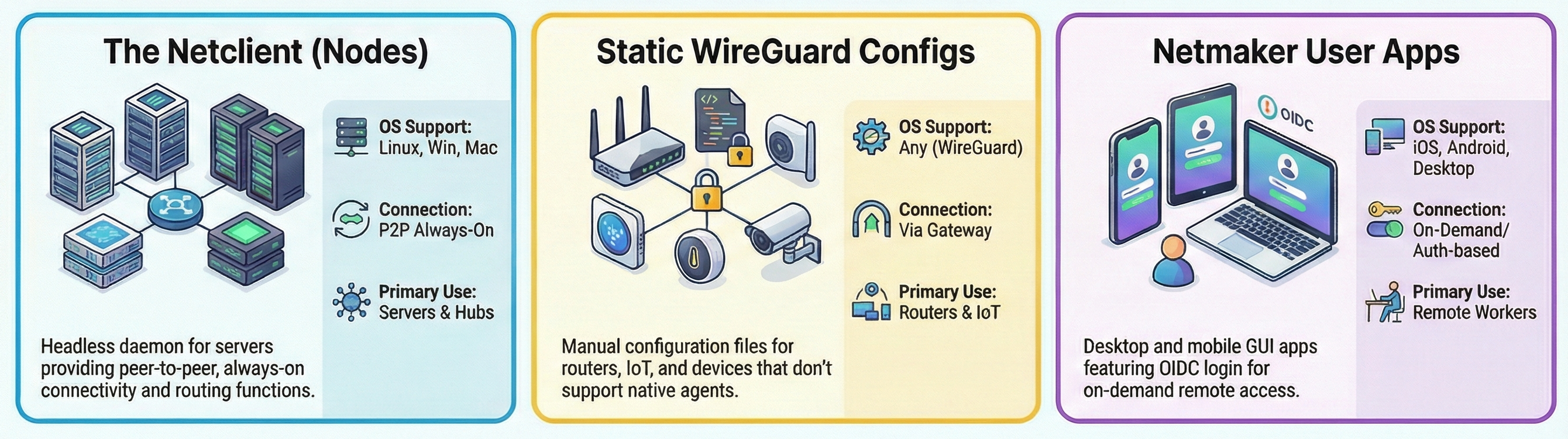
Netmaker has 3 types of Clients: The Netclient, Static WireGuard Config Files, and our user apps (Netmaker Desktop and Mobile).
| | | | |
| ------------ | ------------------------------------------------------------------------------- | ---------------------------------------------------------------------------------------------------------------- | --------------------------------------------------------------------- |
| | **Netclient** | **Static WireGuard** | **User Apps** |
| Format | Headless Daemon | WireGuard Config File | GUI App for Desktop, Mobile |
| OS Support | Linux, Windows, Mac | [Many](https://www.wireguard.com/install/) | Linux, Windows, Mac, iOS, Android |
| Connectivity |
Peer-to-Peer Always-On
|
Via Gateway (Hub-And -Spoke) Always-On
|
Via Gateway (Hub-And -Spoke) On Demand or Always-On
|
| Capabilities |
Act as Hub for other Clients Forward traffic to external environments
|
Can be used with many routers to support Site-to-Site Deployable on any device that supports WireGuard
|
User auth-based login Session Expiry GUI for Ease of Use
|
## Netclient (Nodes)
When the Netclient is deployed to your network it appears as a Node in your dashboard.
The Netclient is meant to be deployed on servers, which are either endpoints, or will serve a routing function in the network:
* Forward traffic to a LAN or Internet
* Act as Gateway for connections from static WireGuard, users, or other Netclients
Every network will at least need one Netclient to function, so this is a good place to start.
### Netclient In Multiple Networks
A Netclient can be a part of multiple networks simultaneously, and can serve different functions in different networks. After adding a Netclient to Netmaker, you can choose to give it access to different networks. In Network A it could forward traffic to a local network, while in Network B it could just be an Endpoint, or a Relay.
The main use of this is to have dedicated clients which serve as Gateways within multiple networks, since most use cases require a Gateway. The Netclient maintains secure segmentation between networks, so traffic does not leak between them.
### Example Network with One Netclient: Internet VPN
If you are logging into Netmaker for the first time, you will see an auto-generated network with a single, default device in it, which is set as a Gateway. In order to set this device as an Internet Gateway, simply edit the device settings, and toggle on "Internet Gateway." This use case is now complete.
You, as a user, now just have to download a user app, log in, and connect, and you now have a fully functioning full-tunnel VPN.
### Example Network with Two Netclients: Remote Access VPN
The most common use case we see at Netmaker only requires 2 netclients to function.
Netclient 1: Acts as a Gateway for user connections.
Netclient 2: Acts as Egress to a local network.
Netclient 1 is deployed in a public-facing environment, so that users can access the network from anywhere. The default node works fine for this.
Netclient 2 is deployed inside the private environment, and configured to forward traffic to the local network.

### Example Network with Many Netclients: Overlay Network / Mesh VPN
With servers deployed in the cloud, the office, and at the edge, Company X needed a simple overlay so these servers could all reach each other. So, they installed the Netclient on each server and to make them all accessible from one another, giving direct, peer-to-peer access between the devices.
## Static WireGuard (Clients)
If you have endpoints which do not support the netclient, you will want to generate Config Files and apply them to these devices using WireGuard.
These are just simple configuration files, which can be used on any WireGuard-compatible device.
These config files connect over a Gateway.
There are a few reasons you may want to use static WireGuard clients, rather than the Netclient:
{% stepper %}
{% step %}
### You want to deploy static files onto user devices which are “always-on” and admin-managed
Use static WireGuard config files when devices are managed by admins (e.g. no "user auth" is required) and need persistent, always-on connectivity.
{% endstep %}
{% step %}
### You want to integrate a device into your network which does not support the Netclient
Static files allow integration of devices that cannot run the Netclient but do support WireGuard, which as of today includes most operating systems and devices.
{% endstep %}
{% step %}
### You want to integrate a router into your network
When generating a Client, use the “Egress” parameter to specify a LAN range. After applying the file to the router and configuring routing, this enables communication between the LAN and the VPN.
{% endstep %}
{% endstepper %}
## User Apps (Netmaker Desktop and Mobile)
The user apps enable users to sign-in to the network using their credentials, and connect to the VPN. This is the recommended method for connecting to the VPN from end user devices for remote access. These should not be considered “Endpoints” in this context. On your local laptop, we recommend installing [Netmaker Desktop](/getting-started/server-and-client-management/client-installation/netmaker-desktop-installation.md) to use while testing out your network.
### Next Steps
By this point you should have a good understanding of what you will need to deploy to set up your network. Once you know which devices will serve as the foundation of your network, it is time to move on to add these devices into your network and configure them for their required role.
We will start with the non-user devices, which are the Endpoints, Routers, Relays, and Gateways of your network. After that, we will move on to configuring user access.
---
# Agent Instructions
This documentation is published with GitBook. GitBook is the documentation platform designed so that both humans and AI agents can read, navigate, and reason over technical content effectively. Learn more at gitbook.com.
## Querying This Documentation
If you need additional information that is not directly available in this page, you can query the documentation dynamically by asking a question.
Perform an HTTP GET request on the current page URL with the `ask` query parameter, and the optional `goal` query parameter:
```
GET https://learn.netmaker.io/getting-started/operations-field-guide/planning-your-endpoints.md?ask=&goal=
```
`ask` is the immediate question: it should be specific, self-contained, and written in natural language.
`goal` is optional and describes the broader end goal you are ultimately trying to accomplish on behalf of the user. GitBook uses it to tailor the answer towards what is most useful for that goal.
The response will contain a direct answer to the question and relevant excerpts and sources from the documentation.
Use this mechanism when the answer is not explicitly present in the current page, you need clarification or additional context, or you want to retrieve related documentation sections.