> For the complete documentation index, see [llms.txt](https://learn.netmaker.io/llms.txt). Markdown versions of documentation pages are available by appending `.md` to page URLs; this page is available as [Markdown](https://learn.netmaker.io/getting-started/operations-field-guide/deploying-the-netclient.md).
# Deploying the Netclient
## Overview
You have configured your Netmaker server and created a network (or networks). You have determined the layout of your network, and which devices will serve various functions within the network. Now, it is time to add and configure these devices.

This section covers adding the Netclient to your network, which make up endpoints of your network infrastructure, serve as gateways for traffic, and route (egress) traffic to external environments.
**Nodes:** Typically servers, which you want to reach directly, or which need a direct connection to the network. Examples: A jump server, a database server, edge servers.
**Gateways:** Dedicated nodes which route traffic into and between other devices in the network. Handles access from WireGuard Config Files, User Apps, and assigned Netclients (in the case of peer-to-peer connectivity issues).
**Egress:** Dedicated nodes which route traffic out of the network to an external, local environment.
In the next section, we’ll discuss setting this functionality. But first, we need to add the devices to the network. The Netclient is used on Linux, Windows, and MacOS. Other devices will require static WireGuard config files:
* To add Config Files (static WireGuard), we will need a Gateway. There should be one already deployed in your network, but we'll also cover configuring these in the next section.
* To add Routers, a custom Config File must be created, which we will do in a later section.
We will not cover how to enroll users with the network, which again will come in a later section.
With that in mind, let us begin.
## Adding New Nodes

We will start by adding new Nodes to our server, which are devices running the **netclient**. Such devices can be Linux, Mac, or Windows-based. Additionally, such devices can be added using a Docker Container.
Adding **new** devices to your server consists of three steps:
{% stepper %}
{% step %}
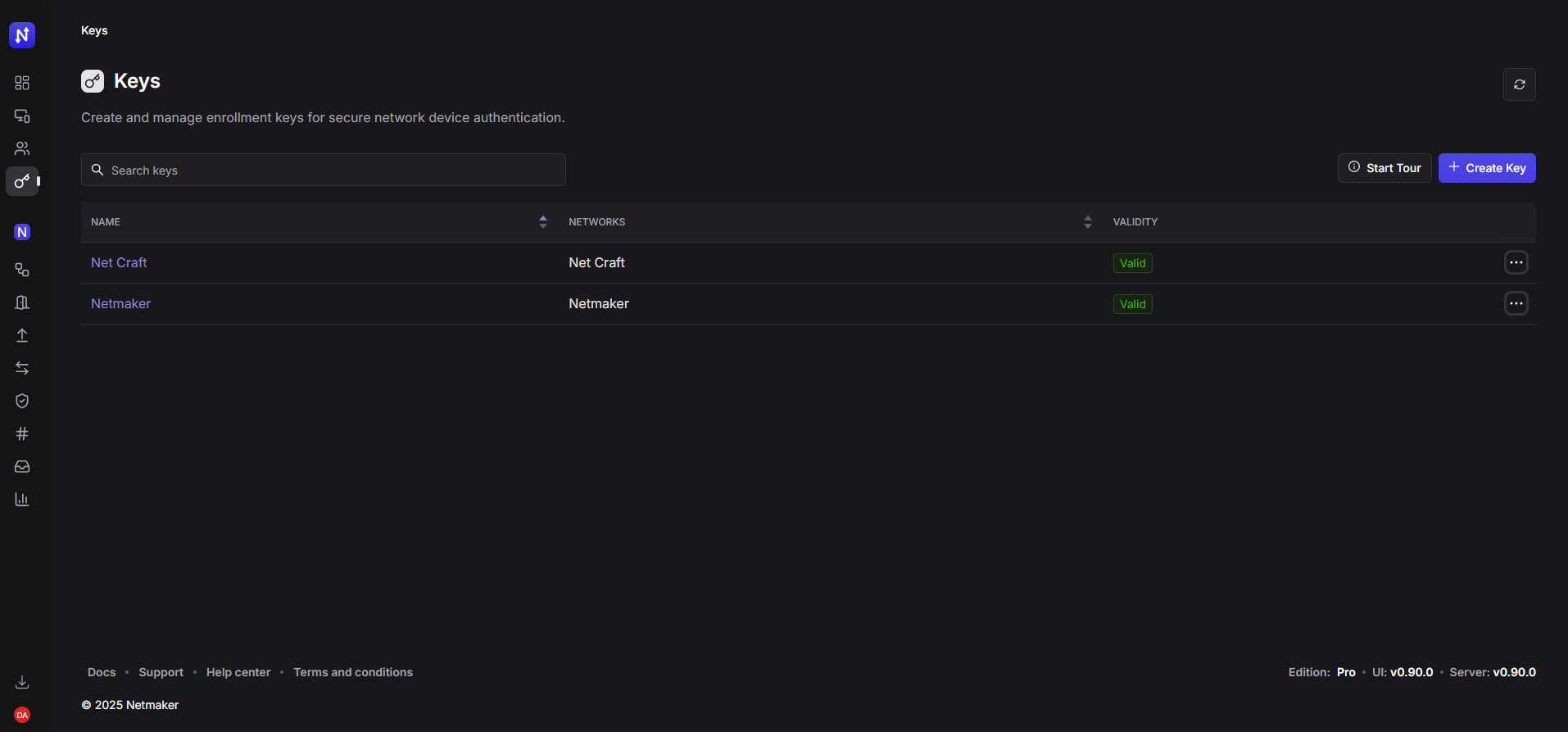
### Create an Enrollment Key
There will already be a default Key created in your network you can use, but we can also define keys with special settings. Keys are how your device initially enrolls into the network, but they have no effect after enrollment is completed, as the devices generate their own, secure encryption keys.
Enrollment Keys tell the server, and the device, which networks they will have access to. They also determine if the device will be **relayed** by default, a useful feature if you know your devices are in a restricted environment.
Enrollment Keys are defined by a number of uses, an expiration date, or are simply unlimited, until you delete them. Choose the option that works for you, and select the networks which your devices will be a part of.

{% hint style="info" %}
You can also create an enrollment key **without** any network access. This allows devices to enroll with your server so an administrator can later grant network access after review.
{% endhint %}
{% endstep %}
{% step %}
### Install the Netclient
After creating the key, add your devices via the “Add Device” flow within your Network. Choose the target platform to get platform-specific installation steps for the netclient.
Once the netclient is installed, you will join the server using the enrollment key provided with the command shown in the UI.

For Docker, run the Docker container with the provided command.
{% hint style="info" %}
For Docker: You can deploy multiple netclient docker containers on a single machine if each container uses distinct volume mount names.
{% endhint %}
{% endstep %}
{% step %}
### Join the Server with the Enrollment Key
Once your devices are added to the network, you will see them in two places: within the Devices interface and in the Nodes interface of your network.
 
{% endstep %}
{% endstepper %}
Hosts that are **already** enrolled with your server can be added and removed from Networks without using a Key — see “Managing Existing Hosts” (below) for details.
After devices are enrolled, the key no longer serves a purpose, and can be deleted if so desired, to prevent other devices from joining the network.
## Managing Nodes
Nodes added to your server can be managed by an administrator. You can edit things like the private IP, the public Endpoint (how other machines reach the device), and MTU. The netclient sets these settings automatically, which can be overridden if necessary. For instance, a device may have two public IPs and you might want to specify which one to use. A device may also be in a high-speed network, where a higher MTU will optimize performance.
### Global vs. Network Scope
Devices have two different “Scopes”: the Network scope and the Global scope. When you go to your network, you will see your device and can edit certain network-specific settings, or remove it from the network.

If you go to the Devices page in the sidebar, you will see all of the devices on the server, regardless of network, and can edit global settings, such as the port the device uses for the VPN.
A Device will only have one network interface locally and use a single IP and port, even if it is in multiple networks. The agent maintains segmentation between networks, so traffic is not sent where it should not be.

### Network Access Management
Within the Device interface, you can also choose which networks a node is a part of. Simply click to add and remove the host from any networks.
A node will have a different virtual IP for each network it is in.

## Notes on Deploying Config Files
While adding nodes to your network, you may find that some devices do not support the Netclient. For such devices, we need to use Config Files. These files are standard WireGuard configurations, and have static access to the network via the Gateway to which they are attached.

Important considerations for Config files:
* These are static files and do not update automatically when the network changes.
* When created, these files include the currently available network resources.
* If you add or remove an Egress range, the files must be re-generated to include them.
Typically, you will want to create these files after you’ve configured all gateways and egress ranges for the network, to avoid having to recreate them.
## Next Steps
Once nodes are added to the network, it is time to configure them with their various network operations. Some nodes may be just endpoints you wish to access, in which case you’re done. Other nodes may need to act as gateways or egress in order to route traffic - See the next section for configuring these networking functions.
---
# Agent Instructions
This documentation is published with GitBook. GitBook is the documentation platform designed so that both humans and AI agents can read, navigate, and reason over technical content effectively. Learn more at gitbook.com.
## Querying This Documentation
If you need additional information that is not directly available in this page, you can query the documentation dynamically by asking a question.
Perform an HTTP GET request on the current page URL with the `ask` query parameter, and the optional `goal` query parameter:
```
GET https://learn.netmaker.io/getting-started/operations-field-guide/deploying-the-netclient.md?ask=&goal=
```
`ask` is the immediate question: it should be specific, self-contained, and written in natural language.
`goal` is optional and describes the broader end goal you are ultimately trying to accomplish on behalf of the user. GitBook uses it to tailor the answer towards what is most useful for that goal.
The response will contain a direct answer to the question and relevant excerpts and sources from the documentation.
Use this mechanism when the answer is not explicitly present in the current page, you need clarification or additional context, or you want to retrieve related documentation sections.