Just In Time Access

Part of the Enterprise Plan, ideal for organizations requiring more flexibility

Overview

JIT (Just-In-Time) Access is a security feature that allows network administrators to implement approval-based access control. Instead of granting permanent access to network resources, administrators can require users to request temporary access, which must be approved before the user can connect to the network.

This feature is particularly useful for:

• Implementing zero-trust security principles

• Providing temporary access to contractors or external users

• Enforcing time-limited access to sensitive network resources

• Maintaining detailed audit trails of network access

Key Features

Request-Based Access

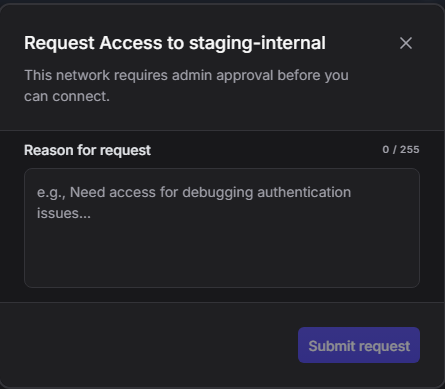
Users must submit a request to access the network, providing a reason for their access need. Administrators review these requests and can either approve or deny them based on business requirements and security policies.

Time-Limited Access

Administrators can explicitly set the duration that users are allowed access. This ensures that access automatically expires after the specified time period, reducing the risk of unauthorized or forgotten access permissions.

Request Management Dashboard

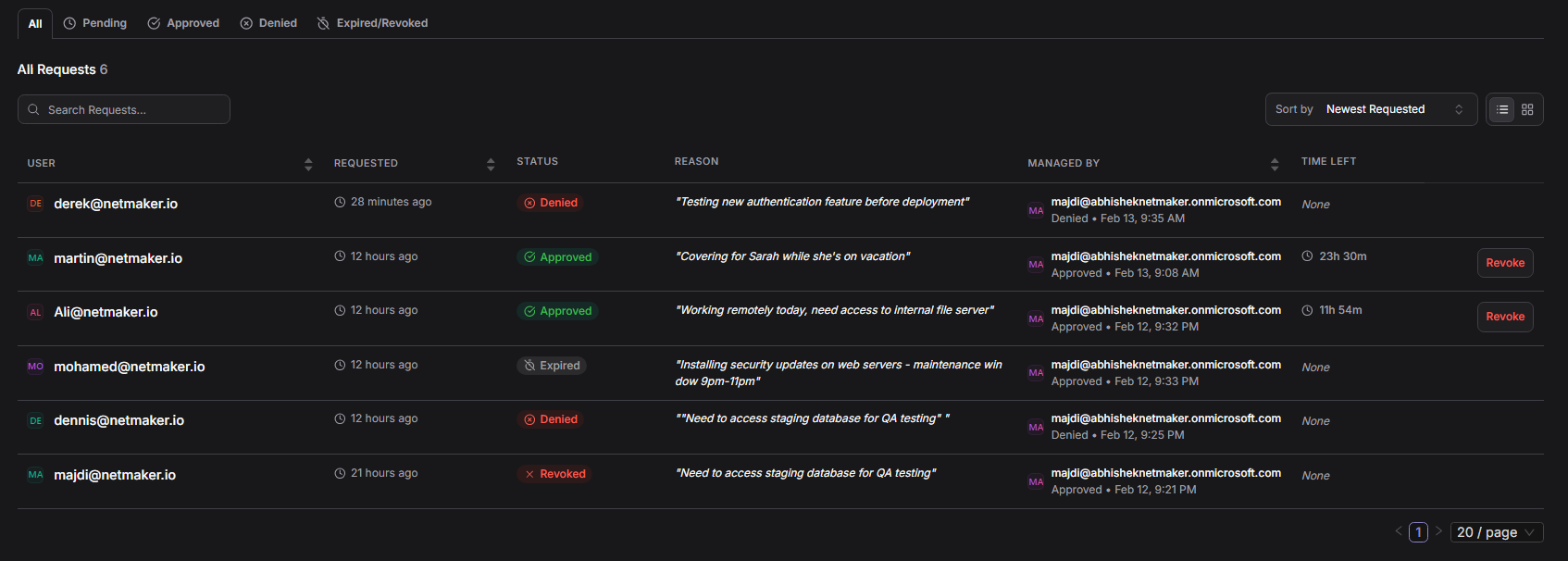
The JIT Requests interface provides a comprehensive dashboard for managing all access requests with the following capabilities:

• View all requests across different states (Pending, Approved, Denied, Expired/Revoked)

• Filter and search through pending requests

• Quick approval or denial actions

• Track request timestamps and remaining time

Email Notifications

Email notifications keep both admins and users informed throughout the access request lifecycle:

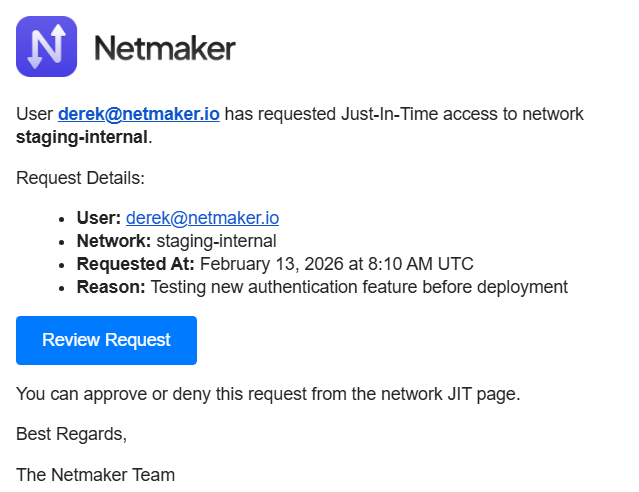
Admin Notification (Access Request Received):

When a user requests access, the network admin receives an email containing:

• Requesting user name

• Network name

• Reason (if provided)

• Direct link to review the request

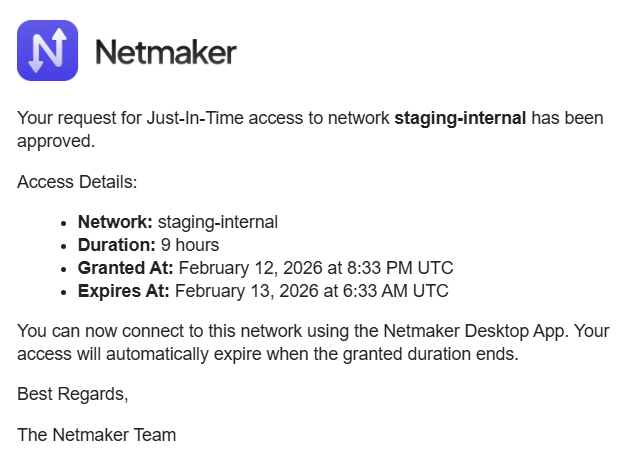
User Notification (Access Approved/Denied):

When an admin processes a request, the user receives an email notification with the decision and relevant details.

circle-info

Important: Email notifications depend on your email setup. If you're self-hosting Netmaker, you must configure SMTParrow-up-right under server settings first. Without proper SMTP configuration, email notifications will not be sent.

Configuration

Enabling JIT Requests

To enable JIT Requests for a network:

1. Navigate to the JIT Requests interface of your network in the admin dashboard

2. Toggle the feature to 'Enabled'

Note: Once enabled, approval will be required before connecting to the network, but only for platform and service users accessing it via the Netmaker Desktoparrow-up-right application.

User Experience

Accessing Networks via Netmaker Desktop

Platform users and service users interact with JIT-enabled networks through the Netmaker Desktop application. The application provides a clean interface showing all available networks and their current access status.

Network Display States

In Netmaker Desktop, networks are displayed with different states depending on JIT configuration and current access status:

Display

State

User Action

Request button

Network requires JIT approval and user has no active access

Click 'Request' to submit an access request

Access request pending (grey)

Request has been submitted and is awaiting administrator approval

Wait for administrator to approve or deny the request

Active (green check)

Access approved and currently active

Users can toggle the connection on or off within the approved access period

Requesting Access via Netmaker Desktop

When a user needs to access a JIT-enabled network through Netmaker Desktop:

1. User opens Netmaker Desktop application

2. User sees the list of available networks

3. For JIT-enabled networks without active access, a 'Request' button is displayed

4. User clicks 'Request' button

5. User provides a reason for access in the request dialog

6. Request is submitted to administrators for review

7. User waits for approval (request appears in admin dashboard as 'Pending')

8. Once approved, the network becomes active with a timer showing remaining access time

9. User can toggle the connection on/off during the approved time window

Example from Netmaker Desktop:

'office-network' shows a 'Request' button (needs to be requested), 'staging-internal' displays 'Access request pending' (waiting for admin approval), and 'zero-path' shows an active connection with toggle controls and an expiration countdown of 29 days and 23 hours.

Managing Access Requests (Admin Dashboard)

JIT Requests Interface Overview

Administrators manage all access requests through the web-based admin dashboard. The request management interface displays all access requests with the following information:

Field

Description

User

Email address or identifier of the user requesting access

Requested

Timestamp showing when the access request was submitted (e.g., '5 minutes ago')

Status

Current state of the request: Pending, Approved, Denied, or Expired/Revoked

Reason

User-provided justification for why they need network access

Managed By

Administrator who processed the request

Time Left

Remaining duration of approved access

Approving Access Requests

To approve a pending access request:

1. Review the request details including the user, reason, and request timestamp

2. Click the 'Grant Access' button next to the request

3. Specify the duration for which access should be granted

4. Confirm the approval

The user will be notified of the approval. In Netmaker Desktop, the network will change from showing a 'Request' status to displaying an active connection with a countdown timer (e.g., 'Access expires in 29d 23h').

Denying Access Requests

To deny a pending access request:

1. Review the request details

2. Click the 'Deny' button

3. Confirm the denial

The user will be notified of the denial and the 'Request' button will be available in Netmaker Desktop if they need to submit a new request with updated justification.

Best Practices

For Administrators

  1. Review requests promptly to minimize user wait times and maintain productivity

  2. Set appropriate access durations based on the user's stated need, avoid long or short periods

  3. Monitor the Expired/Revoked tab regularly to identify patterns in access requests

  4. Use the search functionality to quickly find specific user requests

  5. Consider user patterns - if a user regularly requests access, evaluate if a longer duration or different access model is appropriate

For Users

  1. Provide clear, specific reasons for access requests to expedite approval

  1. Request access in advance when possible to account for approval time

  2. Monitor your access timer in Netmaker Desktop to know when your access will expire

  3. Disconnect when finished to demonstrate good security practices, even if time remains

  4. Plan ahead for extended work - if you need access for an entire day, mention this in your request reason

Security Considerations

  1. Audit Trail: All requests are logged with timestamps, user information, and reasons, providing a complete audit trail of network access

  2. Principle of Least Privilege: Time-limited access ensures users only have access when needed, automatically revoking permissions after the approved duration

  3. Zero Trust Architecture: Supports zero-trust principles by requiring explicit approval for each access instance, never granting permanent access by default

  4. Compliance: Helps meet regulatory requirements for access control and monitoring, including SOC 2, ISO 27001, and other security frameworks

  5. User Accountability: Requiring users to provide reasons for access creates accountability and discourages unnecessary access requests

Troubleshooting

Users aren't receiving admin emails

  1. Confirm email is configured on the server (self-hosted instances must configure SMTP under server settings)

  2. Check spam filtering

  3. Verify the admin's email address is correct

A user can't connect after being approved

  1. Confirm the grant hasn't expired - check the countdown timer

  2. Ask the user to refresh the network list in Netmaker Desktop

  3. Confirm the user is trying to connect to the correct network

If you experience any difficulties, we’re here to helparrow-up-right.

Common Use Cases

1. Contractor Access

Grant temporary access to external contractors for specific projects or maintenance windows without creating permanent accounts. Contractors use Netmaker Desktop to request access, and administrators can approve time-limited access matching the project timeline.

2. Elevated Privilege Scenarios

Require approval for users needing temporary elevated access to sensitive network segments or resources. Even trusted employees can request JIT access for specific tasks that require higher permissions.

3. Break-Glass Access

Implement emergency access procedures where users can request immediate access for critical situations, with full audit logging. Administrators can quickly review and approve urgent requests while maintaining security oversight.

4. Shift-Based Access

Control access based on work shifts, requiring users to request access only during their scheduled hours. This ensures that off-duty staff don't have lingering network access.

5. Temporary Remote Work

Employees working remotely on specific days can request access for that day only, rather than maintaining permanent VPN access. This is particularly useful for hybrid work environments.

Technical Details

  1. User Managementarrow-up-right enables administrators to create and manage users, assign roles, and control access to networks and resources.

  2. Netmaker Desktoparrow-up-right is the official netmaker client application used by users to securely access private networks, remote resources, and internet access.

  3. Admin Dashboard (NMUI)arrow-up-right is a web-based management interface used by administrators to configure, control, and monitor network resources.

Summary

JIT Requests provides a powerful mechanism for implementing time-bound, approval-based access control to your network. By requiring explicit approval and setting time limits on access, this feature significantly enhances network security while maintaining flexibility for legitimate access needs.

The seamless integration with Netmaker Desktop ensures users have a simple, intuitive experience when requesting and using temporary access, while administrators benefit from a comprehensive dashboard that makes request management efficient and provides complete audit trails for compliance and security monitoring.

Last updated

Was this helpful?